
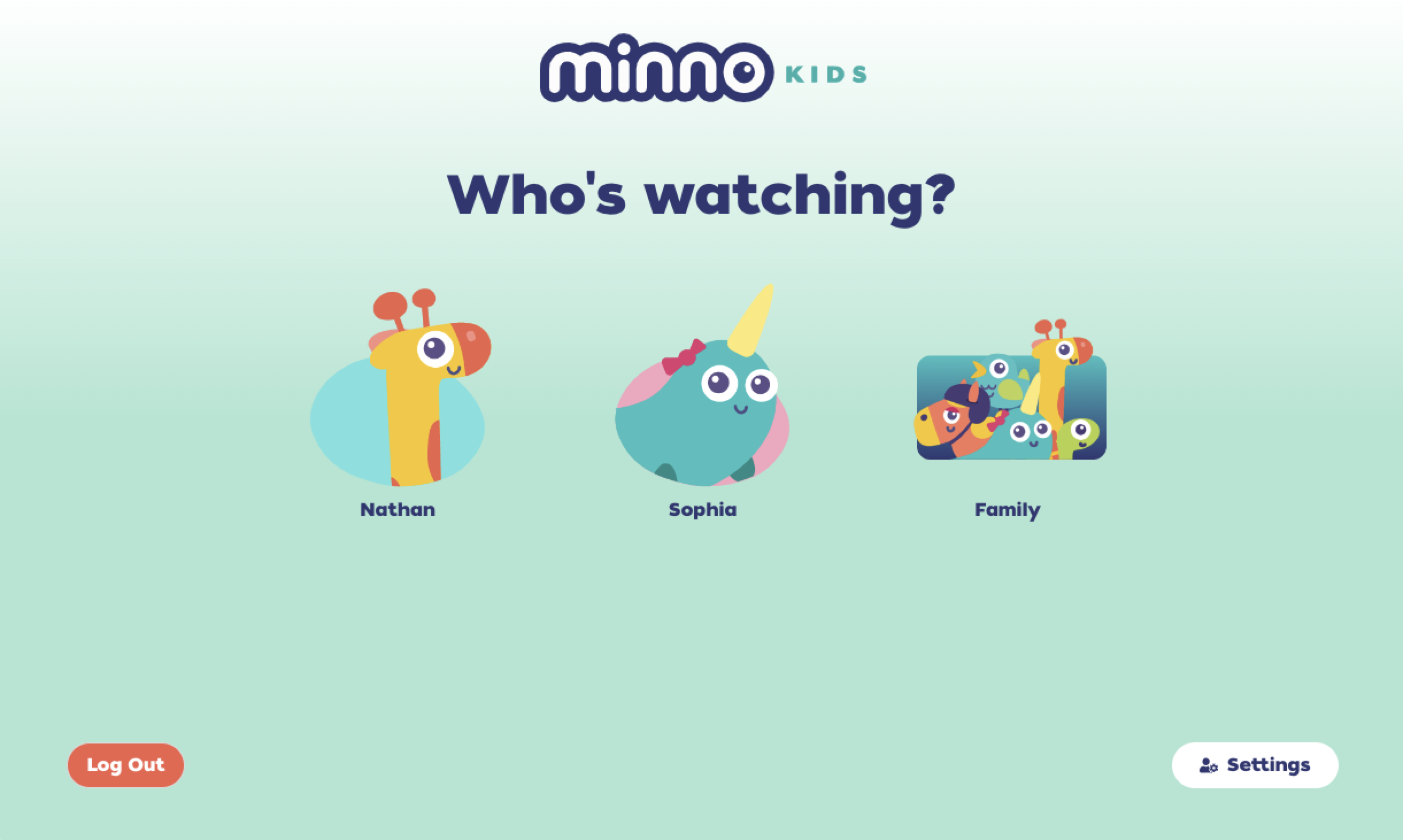
 Introducing Minno Kid Profiles!
Your kid will enjoy picking their own fun avatar and background, and building their own watchlist!
Here's how to get started . . .
On a DESKTOP or MOBILE BROWSER
- Log into your account at https://account.gominno.com/
Click "Add your kids" on the Who's watching? screen - Submit your password
- Click "Add New Kid"
-
Add Your Kid's Name (or a nickname if you prefer!)
Click the pencil icon, then have your kid pick out their favorite avatar - Select a background color
- Click "Add New Kid"
- Click “Settings”
- Add Your Kid's Name (or a nickname if you prefer!)
- Add Your Kid’s favorite character, press “Continue”
Kid Profiles FAQs
> How many profiles can I create?
There are no limits! Have fun creating one for each of your family members!
> What devices are Kid Profiles available on?
Kids Profiles are currently available on desktop and mobile browsers, iOS mobile and tablets and Roku (viewing only, no profile management). Android mobile and tablet apps will be rolling out over the next couple of weeks. Stay tuned!
> When is it going to be available for Android TV, Apple TV, and FireStick?
We have plans to add kid profiles to these platforms but no confirmed dates yet, keep an eye out for updates.
> How can I edit a profile?
Check out our in-depth article below:"
How do I edit a profile on the Web?
How do I edit a profile on the mobile app?
How do I edit a profile on the Roku app?
> How can I remove a profile?
Learn how to deactivate profiles >>here<<.